Enable Zoom Meeting Captions
Jan 16, 2026
Ping utilizes platform meeting captions as part of the post meeting processing. If your meetings are sometimes stuck in processing after completion, sometimes this can be the root cause.
Meeting captions can be controlled on a per meeting basis or globally at the account level. This guide shows each option to make sure your meeting captions are turned on.
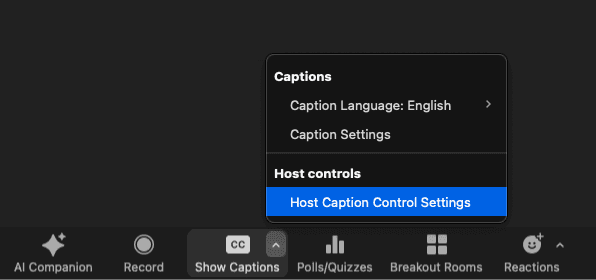
To enable meeting captions in a specific meeting, navigate to Host Caption Control Settings while in a Zoom meeting.
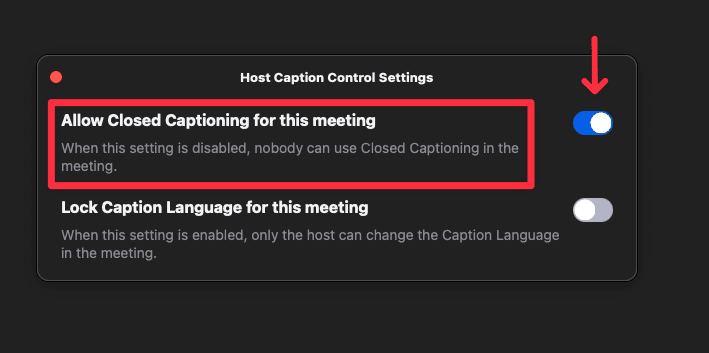
Then, enable the setting called Allow Closed Captioning for this meeting
Meeting captions are disabled globally
If the user doesn't see an option to enable meeting captions in their Zoom client, they likely have the setting turned off globally.
To resolve this, simply go to Zoom settings and flip the toggle for Automated captions
Meeting captions can only be enabled by hosts
If a bot did not generate a transcript with meeting captions enabled in the Zoom settings, it is possible that permission to enable meeting captions is only granted to the Host/Co-host of the meeting.
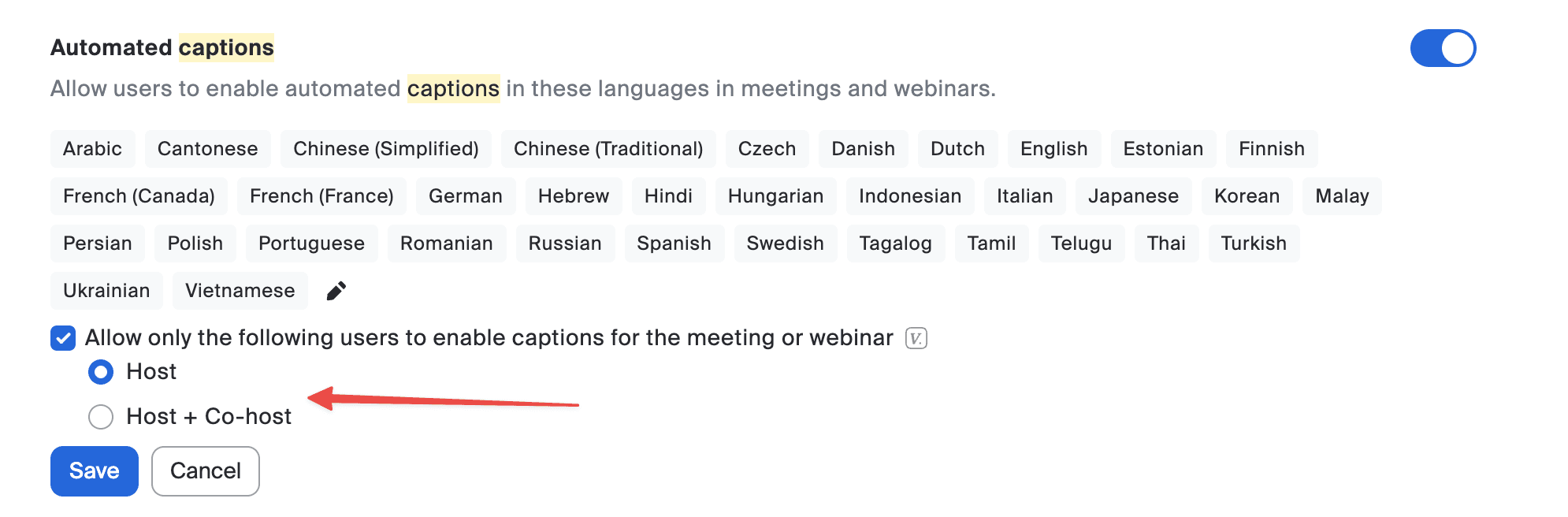
To resolve this, simply go to Zoom settings and disable the toggle for Allow only the following users to enable captions for the meeting or webinar