How to Create a Custom Thumbnail for Your Ping Meeting Assistant
Jan 14, 2026
Create a Custom Thumbnail for Your Ping Meeting Assistant
You can personalize how your Ping Meeting Assistant appears in meetings by uploading a custom thumbnail image. This helps match your brand, set context for attendees, or simply make the assistant feel more personal.
Where to Update the Assistant Appearance
Follow these steps:
Open Settings in Ping.
Select Meeting Assistant.
Go to Assistant Appearance.
From here, you can:
Update the assistant name that appears in meetings.
Upload a custom image.
Turn the image on or off using the image toggle.
Uploading a Custom Image
In the Assistant Appearance section, you can upload any image you like. Recommended sizing is shown directly in the upload area to help ensure the image looks good in meetings.
If you don’t already have a design tool, there are a few easy options:
Figma or Canva for more design flexibility.
Google Slides or Microsoft PowerPoint for a fast, free option using a correctly sized canvas.
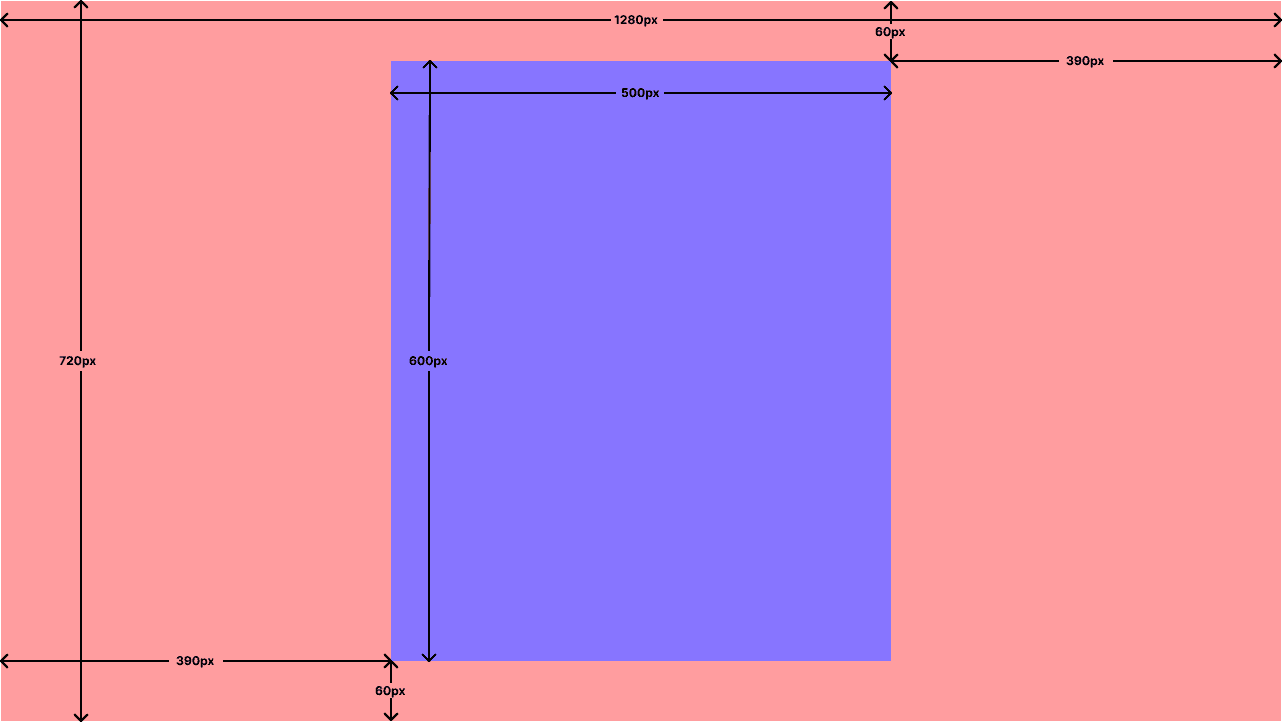
If you use a tool other than google slides or powerpoint here is the sizing guide.
The Purple space is the safe space that will always show up regardless of any video croping.
Creating a Thumbnail Using Google Slides or PowerPoint
Follow these steps:
Open Google Slides or Microsoft PowerPoint.
Insert your logo or image onto a blank slide.
Optionally add text, such as a short message explaining what Ping is doing during the meeting.
Adjust alignment and layout until it looks the way you want.
Go to File and download the slide as a JPEG image.
Upload and Save Your Thumbnail
Follow these steps:
Return to Assistant Appearance in Ping.
Select Upload image and choose your downloaded JPEG.
Click Save to apply the changes.
Your custom thumbnail will now appear when the Ping assistant joins meetings. You can also rename the assistant to something that fits your brand, such as your company name or team role.
Feel free to experiment and have fun creating a thumbnail that represents you and your business.