Enabling Imports from Fathom into Ping
Jan 22, 2026
Importing Fathom Meetings into Ping
This guide walks you through how to backfill your existing Fathom meeting recordings into Ping, allowing you to take advantage of Ping's AI-powered meeting insights on your historical meetings.
Overview
If you've been using Fathom to record your meetings, you can import those recordings into Ping. Once imported, Ping will process each meeting just like a native Ping recording—generating summaries, extracting action items, and (if you have clients set up) automatically associating meetings with the appropriate client.
Prerequisites
Before importing, you'll need:
A Fathom API Key - You can generate this from your Fathom account settings
Ping account with the import feature enabled - Contact support@pingassistant.com if you don't see the import option
Step-by-Step Import Guide
Step 1: Navigate to Data Import Settings
Go to Settings > Integrations > Data Import in your Ping dashboard.
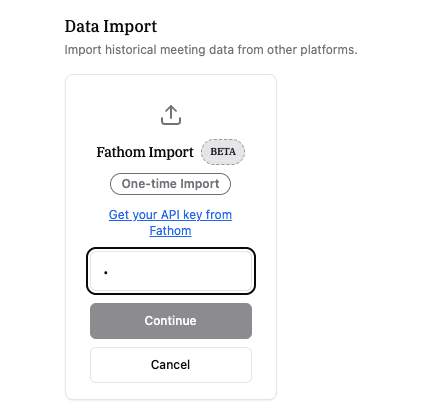
Step 2: Connect Your Fathom Account
Click on the Fathom integration option
Enter your Fathom API key when prompted
Click Continue to verify your API key works
Step 3: Select Meetings to Import
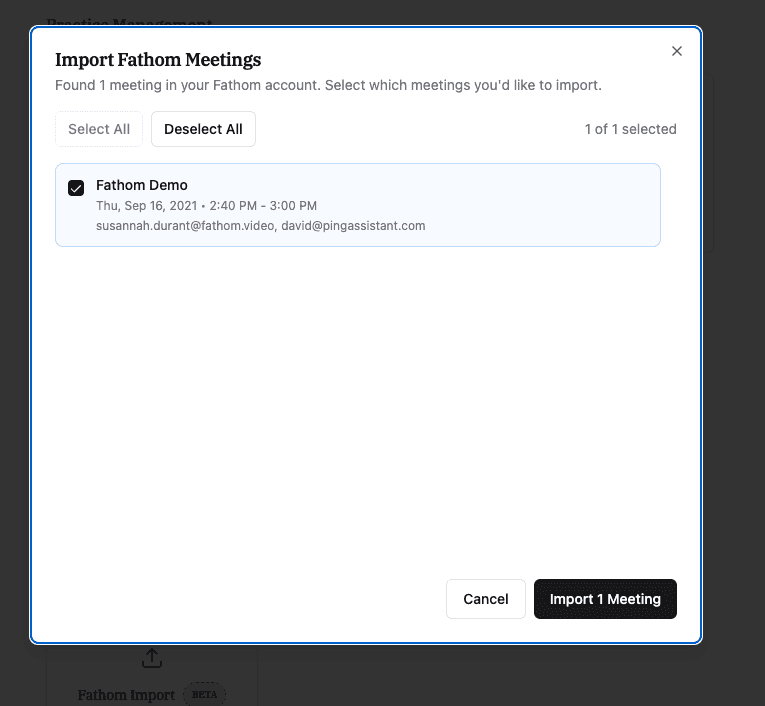
After validation, Ping will fetch a list of all available meetings from your Fathom account. You'll see:
Meeting title
Date and time
Participants
Meetings already imported (shown with a green "Imported" badge)
Use the checkboxes to select which meetings you want to import. You can:
Select All - Import all available meetings
Deselect All - Clear your selection
Individually select specific meetings
Step 4: Start the Import
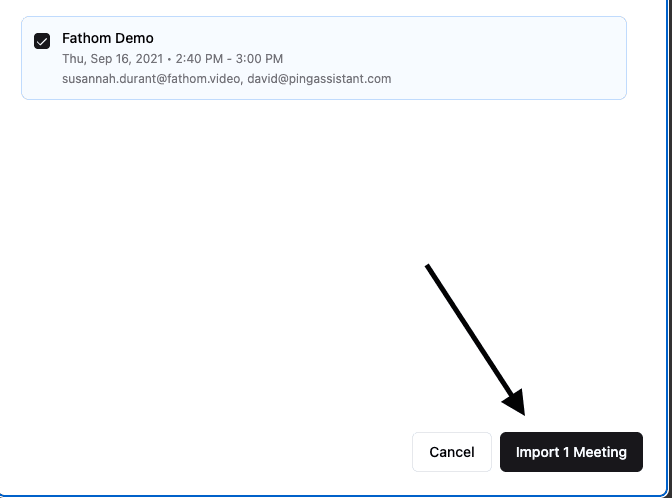
Click Import X Meetings to begin the import process.
Important: The import happens in the background. You can close the modal and continue using Ping while your meetings are processed.
How Client Matching Works
If you have client entities set up in Ping, the system will automatically attempt to match imported meetings to the appropriate client. Here's how it works:
Ping extracts participant emails from each Fathom meeting
These emails are compared against your client contacts in Ping
When a match is found, the meeting is automatically associated with that client
Tip: For best results, make sure your client records in Ping include accurate contact email addresses before running the import.
Important Considerations
Processing Time
Backfilled meetings are processed with lower priority than your live Ping meetings to ensure real-time recordings aren't delayed. If you're importing a large number of meetings (dozens or hundreds), they may take some time to fully process.
The meetings are queued and processed in the background as resources become available.
Email Notifications
Heads up: Each imported meeting triggers the same post-processing workflow as a live meeting. This means you'll receive a "Post-Meeting Recap" email for every processed meeting if you have that notification enabled.
To avoid email overload during a large import:
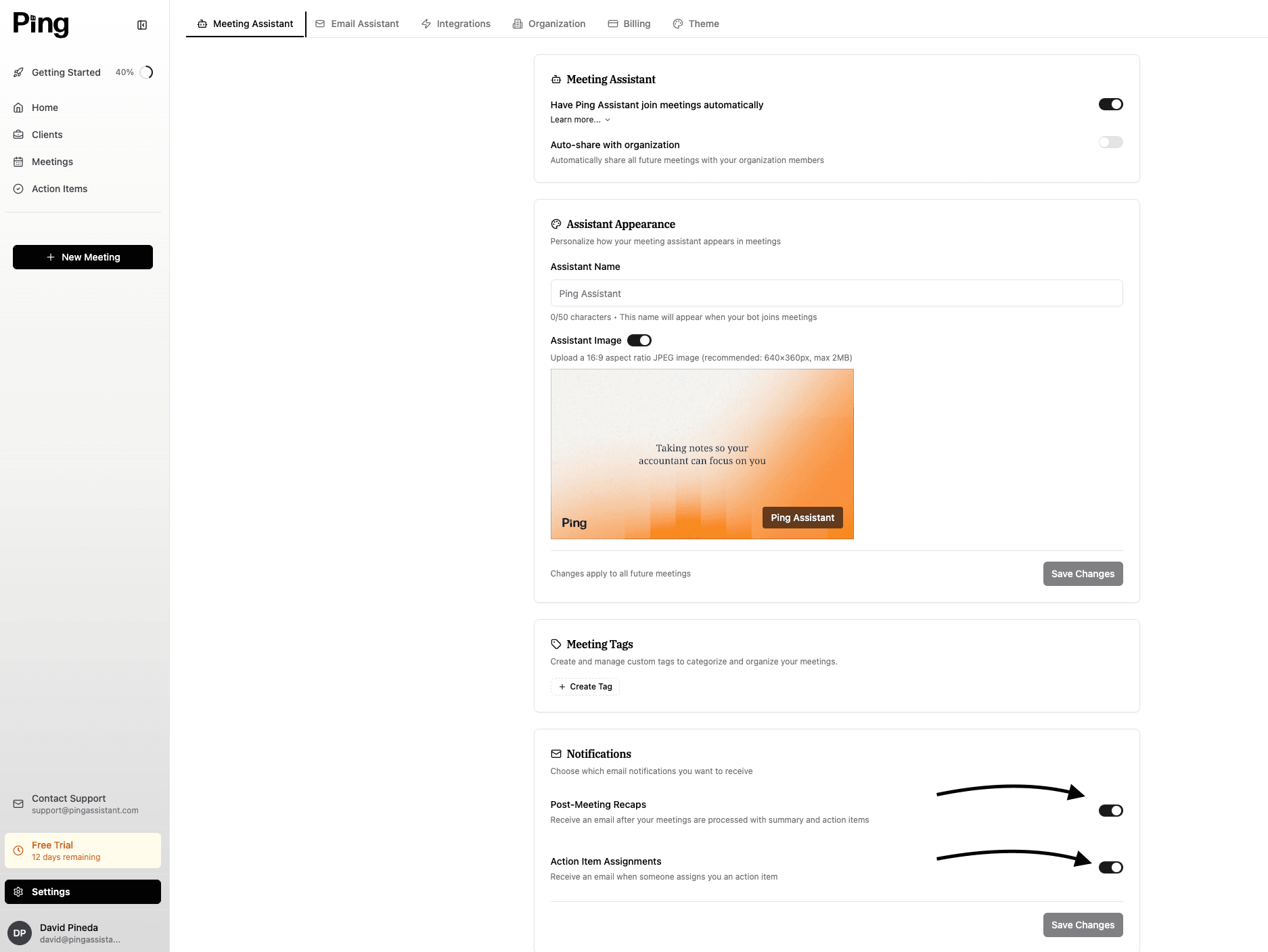
Go to Settings > Meeting Assistant
Scroll down to the Notifications section
Toggle off Post-Meeting Recaps temporarily
Re-enable after your import completes
Duplicate Prevention
Ping automatically detects meetings that have already been imported and prevents duplicates. Previously imported meetings appear with a green "Imported" badge and cannot be selected again.
Troubleshooting
"API Key Invalid" Error
Double-check that you copied the full API key from Fathom
Ensure there are no extra spaces before or after the key
Verify the API key hasn't been revoked in your Fathom settings
Meetings Not Appearing After Import
Imports are processed in the background—allow some time for processing
Check your Meetings list and filter by date range to find imported meetings
Large imports may take longer during peak usage times
Some Meetings Failed to Import
Check the error message shown in the completion dialog
Common issues include expired recordings or permission problems
You can retry failed imports by running the import process again—already-imported meetings won't be duplicated
Need Help?
If you encounter issues with the import process or have questions, reach out to our support team. We're happy to help ensure your Fathom meetings are successfully imported into Ping.