Microsoft 365 Admin Consent Guide for Ping Assistant
Feb 26, 2026
This guide helps IT administrators grant the necessary permissions for Ping Assistant to access Microsoft 365 resources (Calendar and Email) for their organization’s users.
Overview
Ping Assistant requires admin consent to access certain Microsoft 365 resources. There are two apps that may require consent:
Ping Assistant - For calendar integration (meeting scheduling, notetakers)
Ping Assistant Email - For email integration (client intelligence, thread classification)
When Is Admin Consent Required?
Users will see a “Need admin approval” screen when:
- Your organization has disabled user consent for third-party apps
- The requested permissions require admin-level approval
- The app hasn’t been pre-approved for your tenant
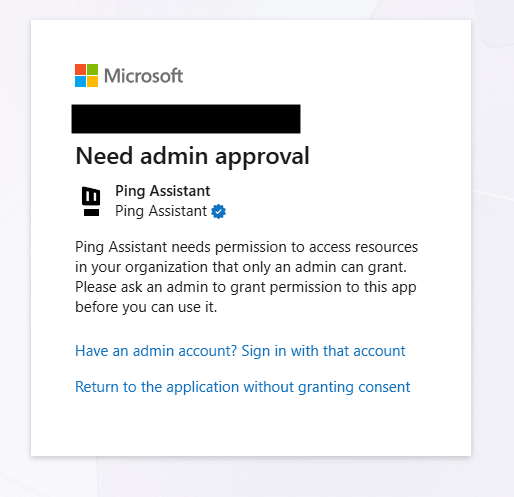
Need Admin Approval Screen
Step-by-Step Instructions
Step 1: Access Microsoft Entra Admin Center
Sign in to the Microsoft Entra admin center as a Global Administrator or Application Administrator
Navigate to: Identity → Applications → Enterprise applications
Step 2: Locate the Ping Assistant Apps
Search for and select each app that requires consent:
Ping Assistant (for calendar access)
Ping Assistant Email (for email access)
Note: Users may appear under the app’s “Users and groups” section even before admin consent is granted. This happens because sign-in scopes are often self-consent enabled, but calendar/email scopes require admin approval.
Step 3: Grant Admin Consent
For each application:
Click on the application name to open its properties
Navigate to Permissions in the left sidebar
Click the “Grant admin consent for [Your Organization]” button
Review the permissions being requested
Click Accept to grant consent:
Step 4: Verify Permissions
After granting consent, verify the following permissions are listed:
Ping Assistant (Calendar)
Permission | Type | Description |
|---|---|---|
| Delegated | Access meeting invites and schedule notetakers |
| Delegated | Get user email address |
| Delegated | Enable long-lived refresh tokens |
| Delegated | View user’s email address |
| Delegated | Sign users in |
| Delegated | View user’s basic profile |
Ping Assistant Email (Email)
Permission | Type | Description |
|---|---|---|
| Delegated | Ingest emails for client intelligence |
| Delegated | Create labels for thread classification |
| Delegated | Get user email address |
| Delegated | Long-lived access tokens |
Step 5: Have Users Retry Connection
After granting admin consent:
Ask users to log out of Ping Assistant completely
Have them log back in and retry the calendar/email connection
They should no longer see the “Need admin approval” screen
Troubleshooting
Issue: Users Still See “Need Admin Approval” After Consent
Possible causes and solutions:
Browser cache - Have users clear their browser cache or try an incognito/private window
Consent not fully propagated - Wait 5-10 minutes and try again
Page needs refresh - After granting consent, refresh the Permissions page to verify the changes took effect
Issue: Permission Type Shows “Application” Instead of “Delegated”
This is a critical issue! Calendar permissions must be Delegated, not Application.
What to look for:
- In the Permissions list, check the “Type” column
- Calendars.Read should show Delegated, not Application
If you see Application type:
1. Contact Ping support (support@pingassistant.com) - this indicates a configuration issue on our end
2. Once resolved, you’ll need to re-grant admin consent
3. Refresh the page after granting consent to verify the type changed
Issue: Some Users Can Connect, Others Cannot
This typically occurs when: - Admin consent was granted after some users already connected
- Users who connected before admin consent was required don’t need it
- New users need the admin consent to be in place
Solution: Ensure admin consent is granted, then have affected users retry.
Issue: Missing Permissions in the List
If you don’t see all the expected permissions:
1. The app may need to request them first - have a user attempt to connect
2. After the connection attempt fails, the permissions should appear in Entra
3. Then grant admin consent for the newly visible permissions
Permission Details
Why These Permissions?
Calendar Permissions (Calendars.Read / Calendars.ReadWrite)
- Allows Ping to view calendar events to identify meetings
- Enables scheduling of AI notetakers for meetings
- ReadWrite allows creating calendar events; Read is sufficient for most features
Email Permissions (Mail.ReadWrite)
- Powers client intelligence features
- Enables automatic thread classification
- Supports draft response suggestions
Mailbox Settings (MailboxSettings.ReadWrite)
- Creates folders/labels for organizing classified threads
- Optional but enhances the email organization experience
Offline Access (offline_access)
- Maintains connection without requiring frequent re-authentication
- Standard for apps that need persistent access
Delegated vs Application Permissions
Delegated: The app acts on behalf of the signed-in user, with the user’s privileges
Application: The app acts as itself, potentially accessing all users’ data
Ping Assistant uses Delegated permissions, meaning:
- Users can only access their own calendar and email
- The app cannot access data the user couldn’t access themselves
- This is the more secure and privacy-respecting approach
Quick Reference
Microsoft Entra Navigation Path
Apps to Configure
Ping Assistant - Calendar integration
Ping Assistant Email - Email integration
Support Contact
If you encounter issues not covered in this guide:
- Email: support@pingassistant.com
- Include screenshots of your Permissions page