
Once you have a meeting link, you can share it, embed it on your website, and manage the bookings that come in.
Share a link
On the Meeting Links tab, each link has actions to:
- Copy link to paste into an email or message.
- Open the public booking page to preview it.
- Embed it on your website.
Embed on your website
Select Embed on a link to get a snippet you can paste into your site. There are three styles:
- Inline puts the booking calendar directly in a page.
- Popup opens the calendar in a dialog when someone selects a button.
- Floating button adds a button that opens the calendar from any page.
Copy the snippet and paste it into your website's HTML.
Manage bookings
Open the Bookings tab to see everything booked through your links. Filter by Needs approval, Upcoming, Past, or Cancelled, and switch between My meetings and the Whole firm.
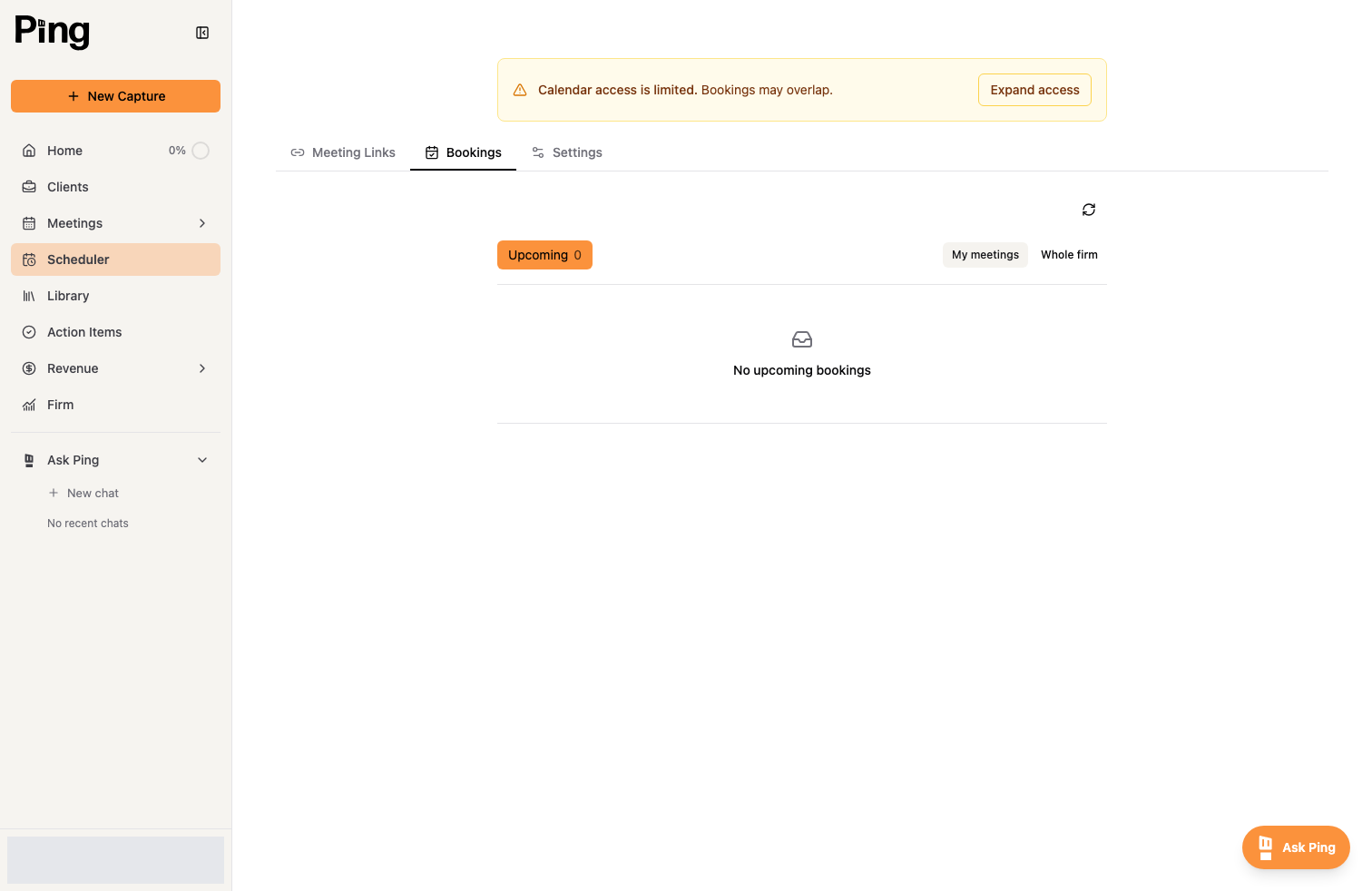
For each booking you can view the details and answers, and approve, decline, or cancel it. Invitees can reschedule or cancel from links in their confirmation email.
Related articles
- Create and manage meeting links
- Get Started with the Meeting Scheduler