
Use Ping’s MCP server to connect Ping to Claude. After setup, Claude can securely search and work with your Ping data, including emails, clients, meetings, transcripts, and more.
Connect Ping to Claude
- In Claude, open the side panel.
- Go to Customize → Connectors.
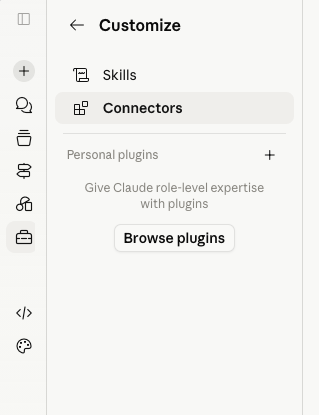
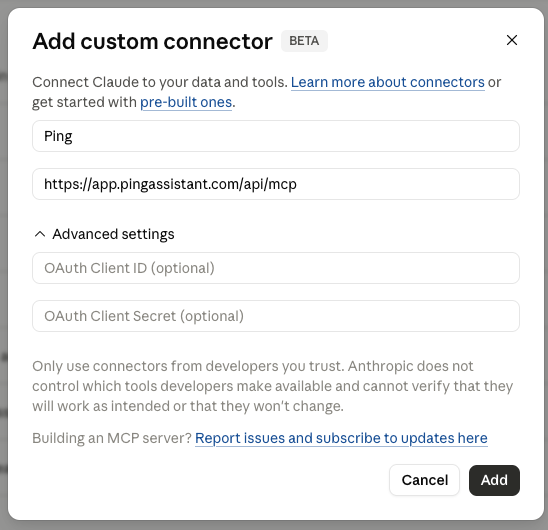
- Click + and choose Add custom connector.
- Enter Ping’s MCP server URL: https://app.pingassistant.com/api/mcp
- Leave the other settings unchanged and click Add.
- When prompted, log in to Ping and allow Claude to access your Ping account.
After the connection is complete, Claude should show the available Ping tools.
Test the connection
Try asking Claude to do something with Ping data, such as:
- Draft an email using Ping context
- Search recent client emails
- Summarize a client meeting
- Search meeting transcripts
Claude Sonnet and Opus work especially well with Ping’s MCP for searching client emails and pulling together context across meetings, clients, and messages.
ChatGPT support
You can also connect Ping’s MCP to ChatGPT, but the setup is currently more involved while we wait on ChatGPT marketplace verification. If you want to connect Ping MCP to ChatGPT, contact the Ping team for instructions. [email protected]