
This guide walks you through how to backfill your existing Fireflies meeting transcripts into Ping, allowing you to take advantage of Ping's AI-powered insights on your historical meetings.
Overview
If you've been using Fireflies to record and transcribe your meetings, you can import that data into Ping. Once imported, Ping will process each meeting just like a native Ping recording—generating summaries, extracting action items, and automatically associating meetings with the appropriate client.
Prerequisites
Before importing, ensure you have the following:
- A Fireflies Paid Plan: API access is available on Pro, Business, or Enterprise plans. Free accounts do not have API access.
- Fireflies API Key: You can generate this in your Fireflies dashboard.
Step-by-Step Import Guide
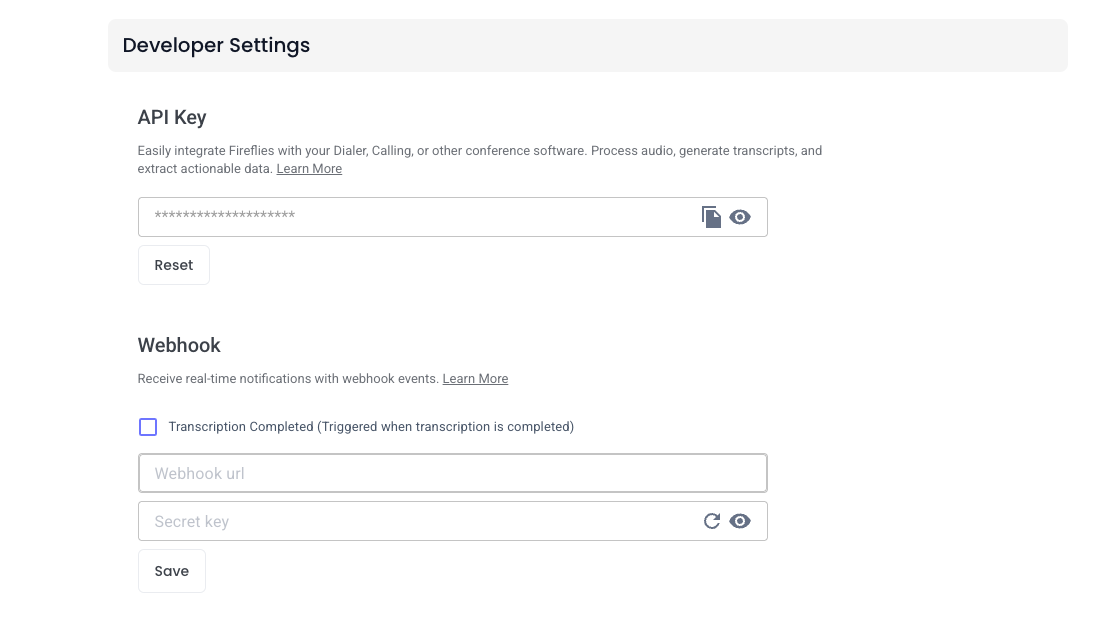
Step 1: Generate Your Fireflies API Key
- Log in to your Fireflies.ai account.
- Navigate to Settings > Developer Settings (or go to Integrations and search for Fireflies API).
- Click Generate API Key (or copy your existing key).
- Save this key securely—you will need it in the next steps.
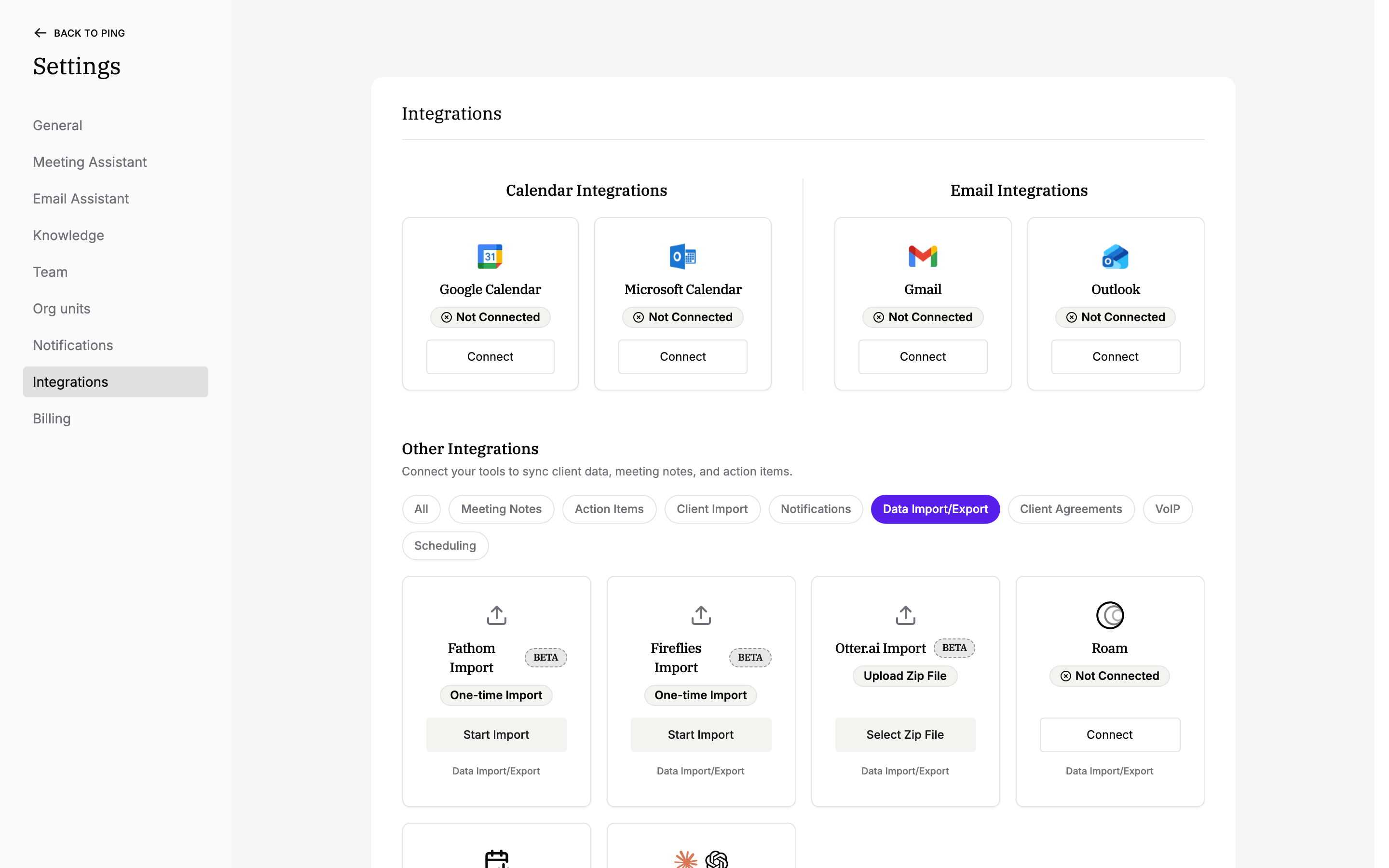
Step 2: Find the Fireflies Import Card
- Open your Ping dashboard.
- Go to Settings > Integrations.
- Under Other Integrations, choose the Data Import/Export filter.
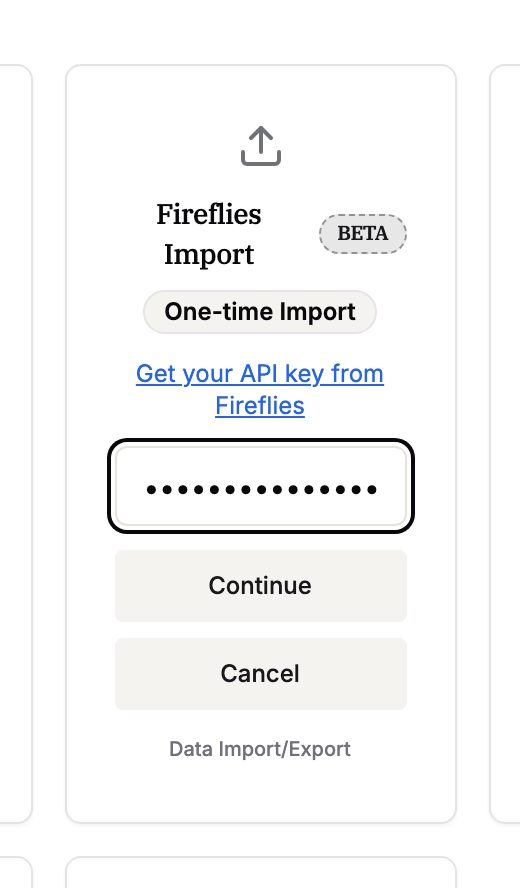
Step 3: Connect Your Fireflies Account
- Click Start Import on the Fireflies Import card.
- Enter your Fireflies API key. Use the Get your API key from Fireflies link if you don't have one yet.
- Click Continue to verify your API key.
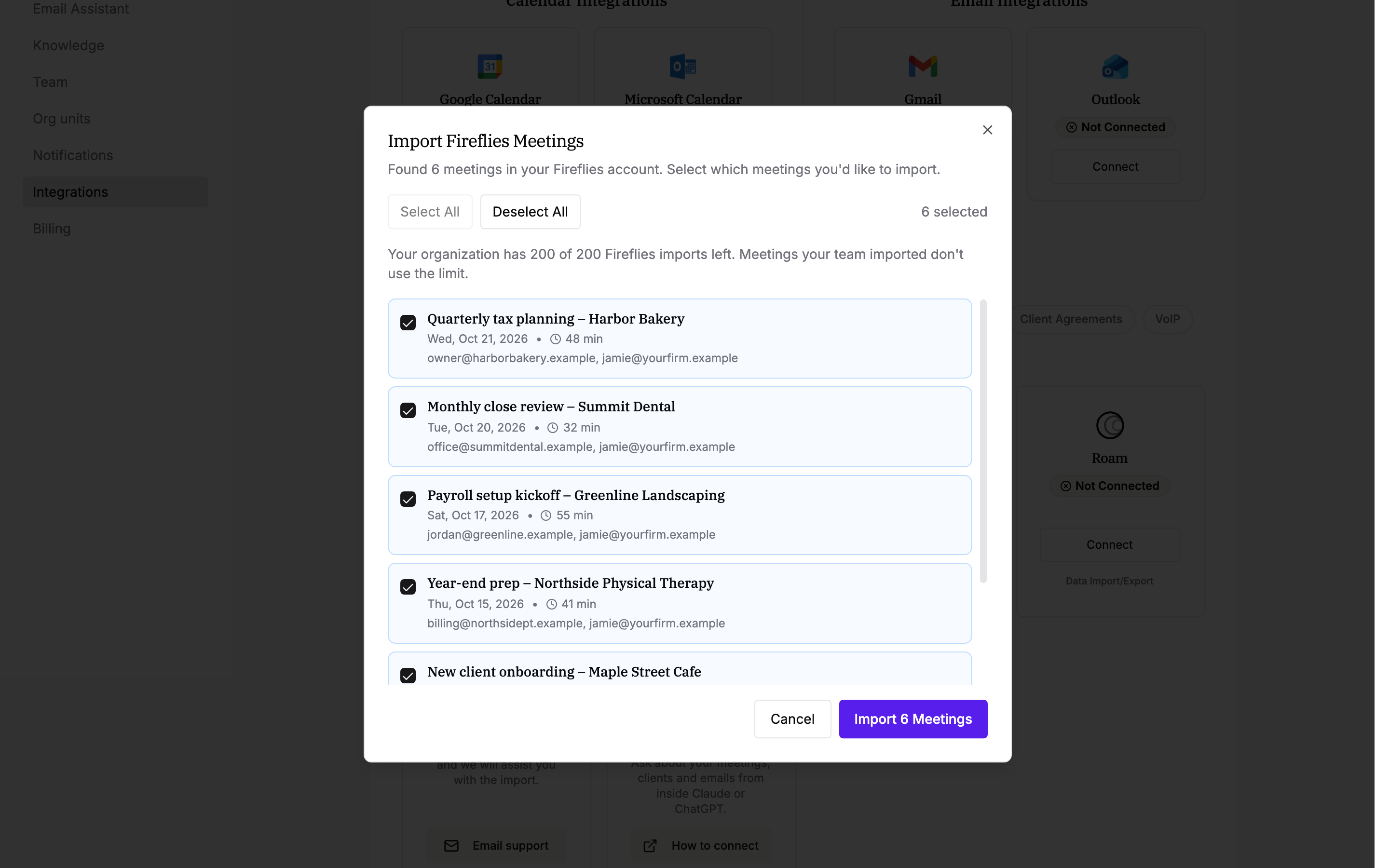
Step 4: Select Meetings to Import
Once validated, Ping will fetch a list of all available meetings from your Fireflies account. You will see:
- Meeting title
- Date and length
- Participants
- Import Status: Meetings already in Ping will be marked with a green "Imported" badge. Meetings a teammate already imported are marked "Imported by your team."
Use the checkboxes to select specific meetings, or use Select All to backfill your history.
Import limit: Each organization can import a set number of Fireflies meetings. The dialog shows how many imports your organization has left. Contact [email protected] if you need to import more.
Step 5: Start the Import
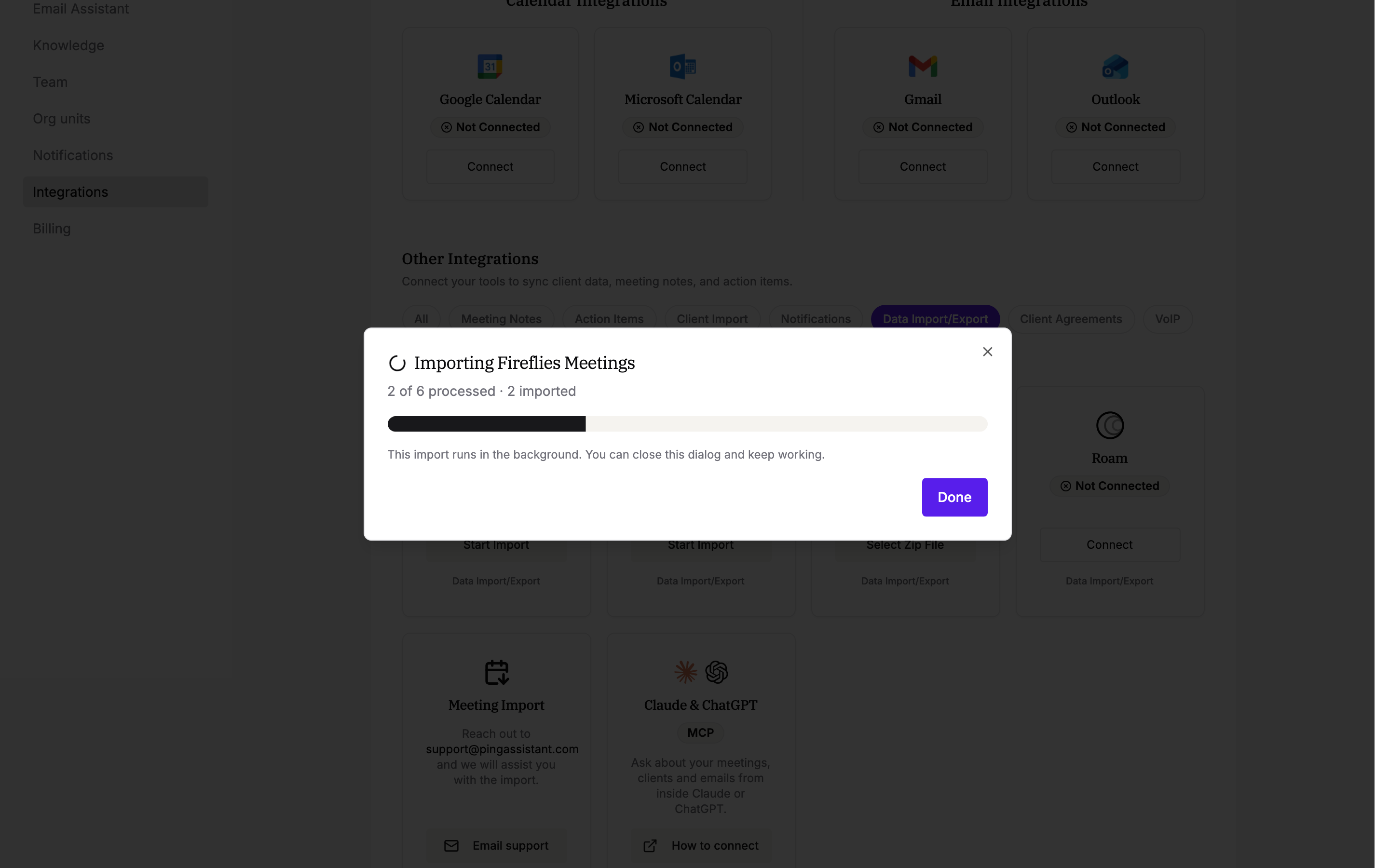
Click Import [X] Meetings to begin. Ping shows the import's progress as each meeting is processed. The import happens in the background, so you can click Done or navigate away while Ping processes the data.
How Client Matching Works
Ping uses Client Memory to organize your meetings automatically:
- Ping extracts participant emails from the Fireflies meeting data.
- These emails are compared against your Client Contacts in Ping.
- When a match is found, the meeting is automatically linked to that client and appears in its activity log.
Tip: Ensure your client records in Ping have accurate email addresses before importing for the best results.
Important Considerations
Processing Time
Backfilled meetings are processed with lower priority than live meetings to ensure real-time recordings are never delayed. Large imports (hundreds of meetings) may take several hours to complete.
Troubleshooting
Need Help?
If you encounter issues or have questions about your specific data, reach out to our support team at [email protected].