
The Share button on a meeting lets you give other people access to it inside your organization, send a public link to the recording and transcript, or email the notes to someone outside your firm. Anyone who can view a meeting can share it, not just the person who recorded it.
Before you start
Open a meeting from Past Meetings. The Share button is in the top-right of the meeting, next to the title. It appears once the meeting has finished processing.
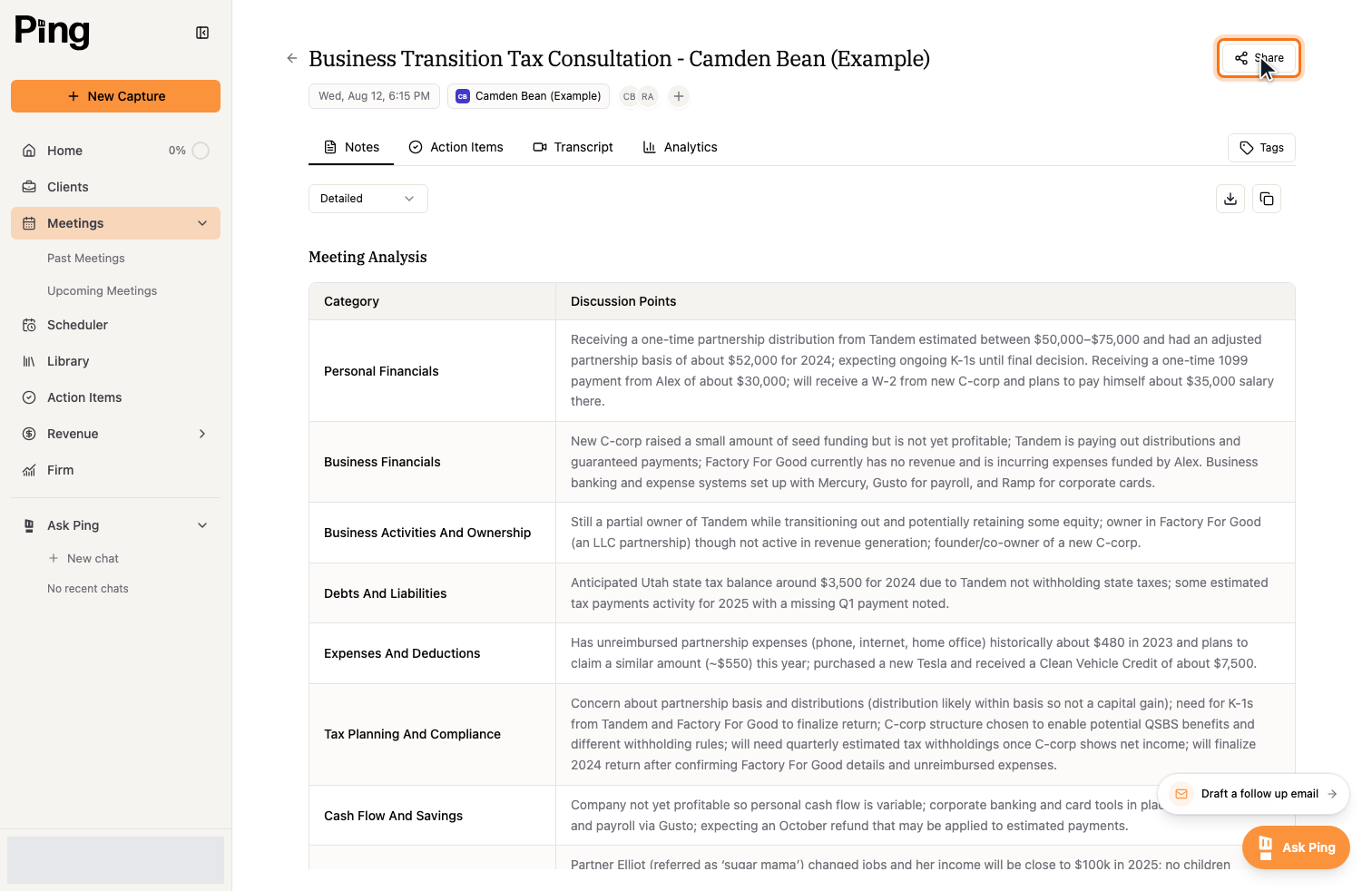
Select Share to open the sharing panel. It has two parts: who can access the meeting inside your organization, and how to share it externally.
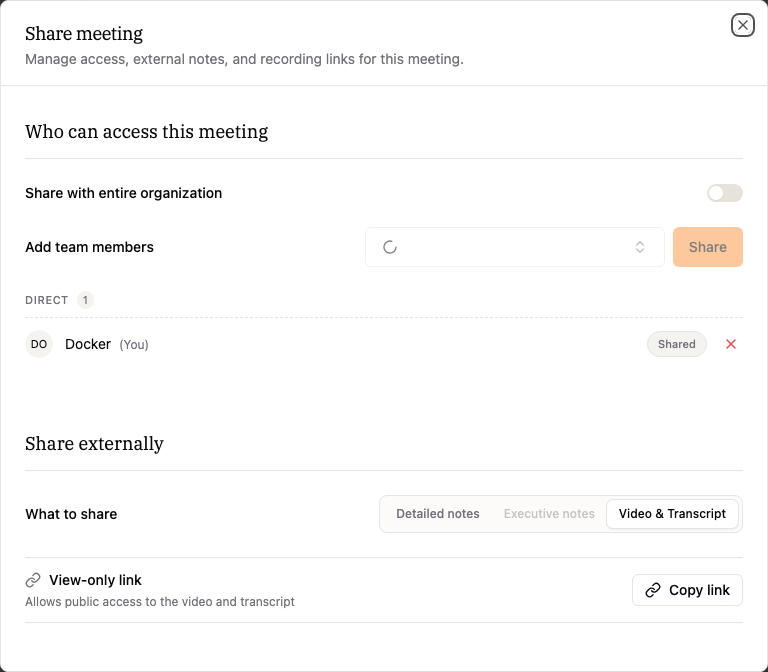
Share inside your organization
Under Who can access this meeting:
- Turn on Share with entire organization to let everyone in your firm see the meeting.
- Or select Add team members to share it with specific people. Search for a teammate, select them, and select Share.
The list below shows everyone who can currently see the meeting and why, such as participants and people you shared it with. To remove someone you shared it with, select the X next to their name.
Share externally
Under Share externally, first choose What to share:
- Detailed notes shares the notes and the detailed summary.
- Executive notes shares the notes and the executive summary. This is available once an executive summary has been generated.
- Video & Transcript shares a link to the recording and transcript. This is available once the meeting has a recording.
Send a link to the recording and transcript
Choose Video & Transcript, then select Copy link. Ping creates a view-only link and copies it to your clipboard. Anyone with the link can watch the recording and read the transcript without signing in.
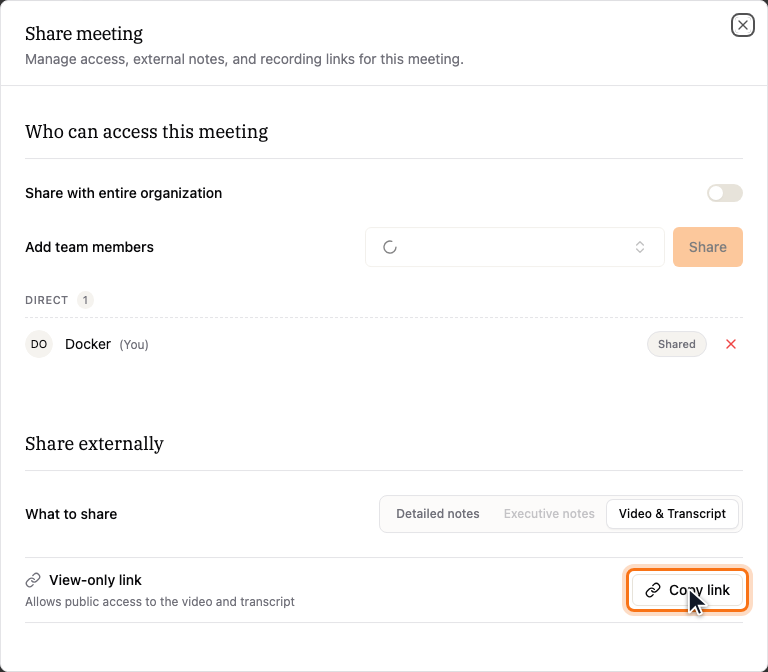
To turn a link off, select Revoke link. It stops working right away.
Email the notes
Choose Detailed notes or Executive notes, add recipients by searching your contacts or typing an email address, then select Send. Select Add all external participants to include everyone from outside your firm who attended. Ping asks you to confirm before sending.
What the recipient sees
A view-only link opens a Ping page with the meeting title, the recording, and a searchable transcript. The recipient can search the transcript, select any line to jump to that moment in the video, and select Copy to copy the full transcript. They do not need a Ping account.
Good to know
- Sharing does not override privacy. If a meeting is restricted to its participants, sharing it with your organization will not expose it.
- View-only links stay active until you revoke them, so share them only with people who should see the recording.
- Share history at the bottom of the panel lists the notes you have emailed, when, and to whom.
Related articles
- Meeting Visibility & Privacy
- Notetaker Controls for Shared Meetings