
Client Assignments control which clients each person in your organization can access. The setting is opt-in and applies to your whole organization.
What the setting does
When Client Assignments are off, every staff member can see every client in your organization. New clients do not require an assignment, and the assignment controls are hidden.
When Client Assignments are on, staff whose client access is assignment-based see only the clients assigned to them, and each client needs at least one assigned person. In organizations without Org Units, Organization Owners retain their existing broad client access.
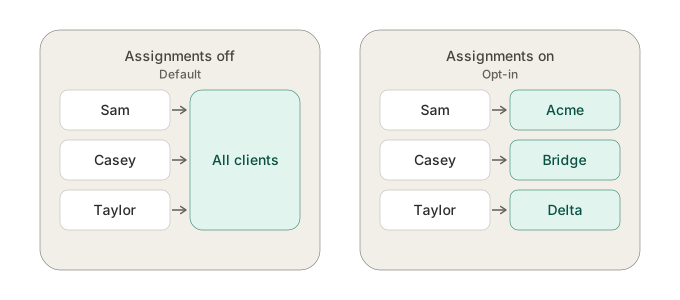
Assignments made while the setting is off stay saved. If you turn Client Assignments back on, those assignments take effect again.
Use Client Assignments when your organization separates client books by partner, department, location, or service team.
Multiple staff on one client
Assignments are many-to-many. A client can have several people assigned to it, and one person can hold a book of many clients.
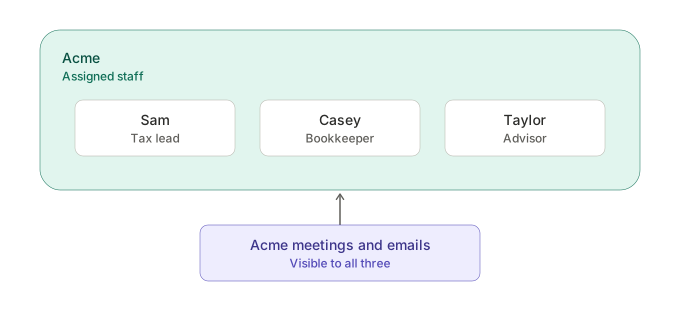
Everyone assigned to a client can open that client and work with its ordinary client data. Meeting and email visibility still follows your organization's sharing settings, participation, and content-specific privacy rules. Assignments are independent of each other, so Casey can also be assigned to other clients without Sam or Taylor gaining access to them.
While the setting is on, do not leave a client with zero assigned people. No one will be able to open it until someone is added back.
Client access and content sharing are separate
Assignments decide which clients a person can open. Your sharing settings decide whether meeting and email content flows to the people on that client.
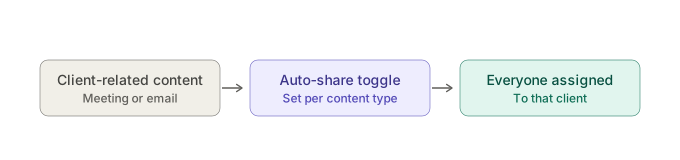
Auto-share is set per content type, so you can share client-related meetings, client-related emails, or both. Turning Client Assignments off makes client records visible to everyone, but content still follows your organization's sharing settings.
Client Owner
Client Owner is a separate checkbox on an existing direct client assignment. Leaving it unchecked keeps the person as an ordinary assignee. Checking it does not change ordinary client, meeting, or email access.
A Client Owner is eligible for Client Health and Revenue for that explicitly owned client when those features are available for your organization and the person's access to the relevant Firm or Revenue surface is allowed. A client can have more than one Client Owner, and a Client Owner does not need to lead an Org Unit.
Change the Client Assignments setting
- Open Settings.
- Select Organization.
- Open the Settings tab.
- Turn Client Assignments on or off.
Owners and provisioners can change this setting.
Manage assignments
When Client Assignments are on, you can manage them from either direction:
- Open Clients and use the Assignments column to assign people to a client.
- Open Settings → Organization → Members and use the Clients column to manage one person's client list.
You can select multiple clients or members to update assignments in bulk.
Client Assignments with Org Units
The two settings solve different problems and can both be on.
- Client Assignments control ordinary client access for people whose access is assignment-based.
- Org Units organize staff and service-line leadership, reporting filters, and rollups.
When both are on, direct assignments control ordinary client access. Org Unit leaders can oversee staff and service-line reporting, but leading someone does not grant access to that person's clients, meetings, or emails. Client Owner is separate from both settings and can add eligible Client Health and Revenue scope for an explicitly owned client without changing ordinary client content access.